


Published Feb 17, 2026, 3:00 PM EST
Yadullah Abidi is a Computer Science graduate from the University of Delhi and holds a postgraduate degree in Journalism from the Asian College of Journalism, Chennai. With over a decade of experience in Windows and Linux systems, programming, PC hardware, cybersecurity, malware analysis, and gaming, he combines deep technical knowledge with strong editorial instincts.
Yadullah currently writes for MakeUseOf as a Staff Writer, covering cybersecurity, gaming, and consumer tech. He formerly worked as Associate Editor at Candid.Technology and as News Editor at The Mac Observer, where he reported on everything from raging cyberattacks to the latest in Apple tech.
In addition to his journalism work, Yadullah is a full-stack developer with experience in JavaScript/TypeScript, Next.js, the MERN stack, Python, C/C++, and AI/ML. Whether he's analyzing malware, reviewing hardware, or building tools on GitHub, he brings a hands-on, developer’s perspective to tech journalism.
If you're tired of paying for a Photoshop subscription, GIMP is one of the best alternatives. However, for those with years of muscle memory developed on Photoshop, using GIMP can be challenging, even though there are certain areas where GIMP outperforms Photoshop.
The solution? Make GIMP more like Photoshop. With a handful of customizations, a few patches, and some other tweaks, you can turn GIMP into a nearly identical replica of Photoshop to help you breeze through the transition.
Before applying any patches or shortcut packs, back up GIMP’s configuration folder (for example, under AppData\Roaming\GIMP on Windows or the GIMP config directory in your home folder on Linux) so you can easily roll back if something feels off. Working against a clean, recent GIMP 2.10 or later install also reduces the chance that older customizations will conflict with Photoshop‑style tweaks.
Turn on single-window mode first
Ditch the floating windows chaos
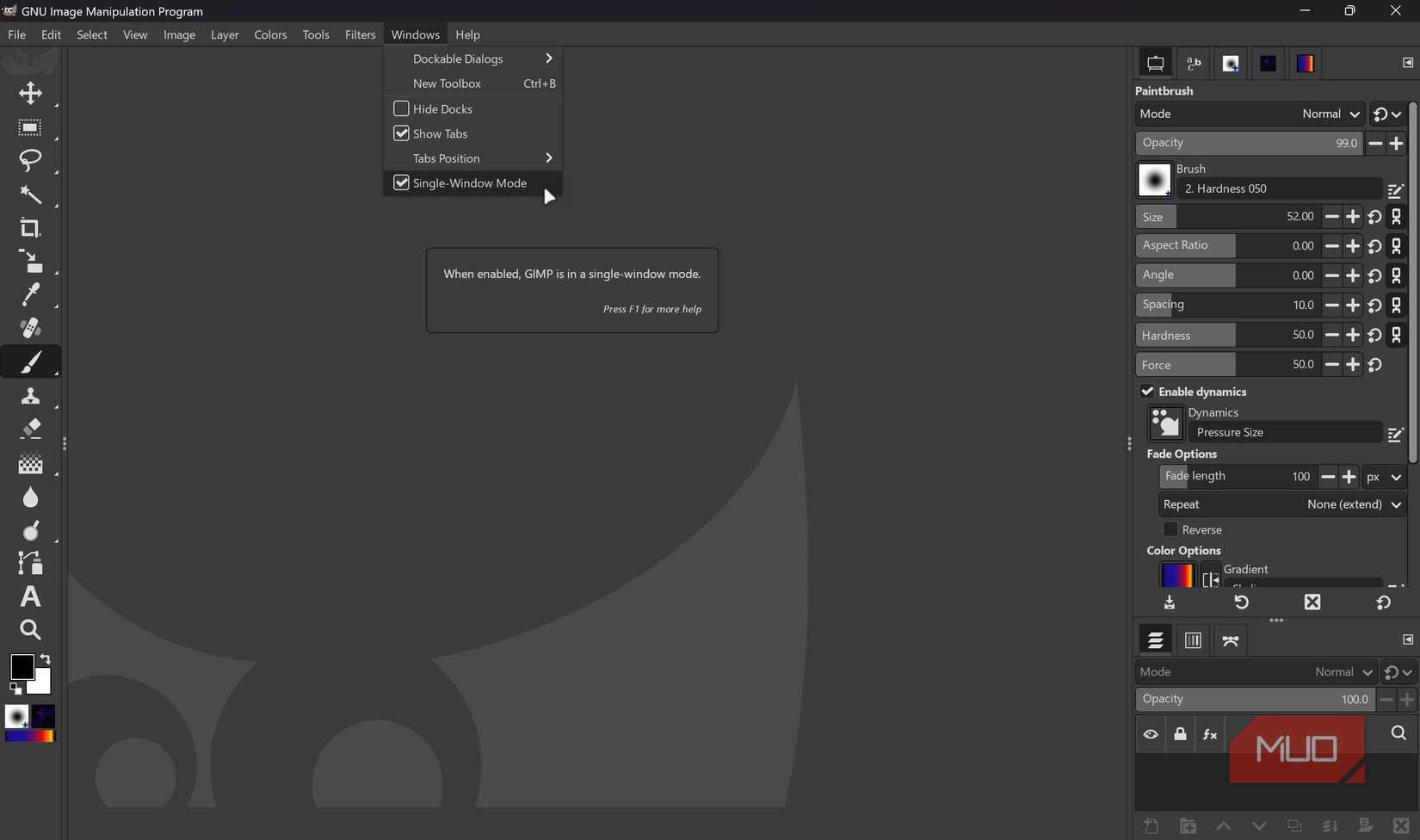
Photoshop users are used to everything living inside one frame, so the first win is to make GIMP behave the same way. To do so, open GIMP, head to the Windows menu, and enable Single-Window Mode. As soon as you change this, the toolbox, image area, and dockable dialogs all collapse into a single, tabbed interface that feels much closer to Photoshop's unified workspace.
GIMP will also remember this choice, so the next time it launches, you stay in single-window mode unless you turn it off again. Another alternative is to manually dock the windows around if you prefer. This gives you more flexibility but can be quite time-consuming.
Install the PhotoGIMP patch for an instant makeover
A Photoshop-style layout in minutes
One of the easiest ways to make GIMP more like Photoshop is to use the PhotoGIMP patch. It's a free, open-source customization patch that transforms GIMP's interface to closely mimic Photoshop. It's not a separate application, just a configuration overlay to replace GIMP's default settings.
Apart from reorganizing the entire interface to match Photoshop's layout, the patch also condenses the toolbox into a single-column step, with tools positioned where you'd expect them in Photoshop. It also applies a symbolic icon theme, which is essentially single-color icons similar to what Photoshop uses. This gives GIMP a much cleaner and more modern look.
PhotoGIMP also remaps all of GIMP's default shortcuts to match Photoshop's keybindings. This means that Ctrl + T for transform, Ctrl + D for deselection, and all the other shortcuts you've burned into your brain over years of using Photoshop work right away. No need to erase years of muscle memory and relearn new shortcuts.
Keep in mind that PhotoGIMP doesn't actually modify GIMP's core functionality. All the features, plugin support, and image processing capabilities remain exactly the same. PhotoGIMP only changes how everything is presented and accessed. While you're at it, also consider adding some plugins that can make GIMP more powerful than Photoshop.

OS Windows, Linux, macOS
Developer Diolinux
Price model Free, Open-source
A patch for optimizing GIMP 3.0+ for Adobe Photoshop users.
Load Photoshop-style keyboard shortcuts
Keep your muscle memory intact
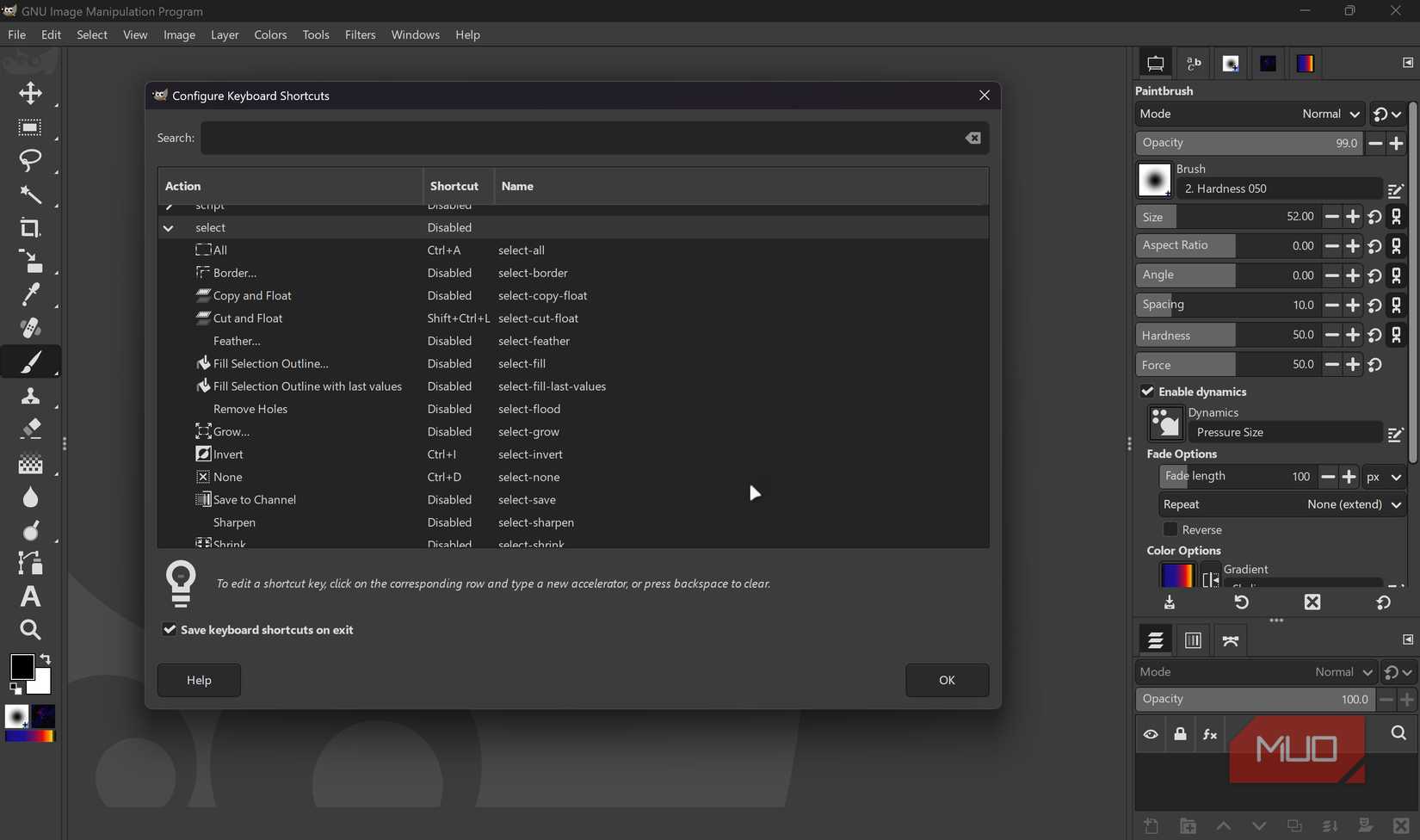
A huge part of Photoshop's feel lives in the keyboard shortcuts. PhotoGIMP will get you quite close to this, but it's still worth a shot to try and bring familiar keyboard shortcuts from Photoshop to GIMP.
Don't worry, you don't have to manually change every single keyboard shortcut. There are dedicated keymap packs, such as the Photoshop Keymap for GIMP extension, which ports popular Photoshop shortcuts to GIMP 3 based on Adobe's own documentation.
Installing these keymaps is quite simple as well. Generally, all you have to do is copy the provided shortcut file into your GIMP configuration folder for the version you're using and restart the program. That said, any custom keybinds you made in Photoshop will still have to be ported over manually, as most patches stick to default keyboard shortcuts and mouse behavior.
Dock layers, brushes, and history properly
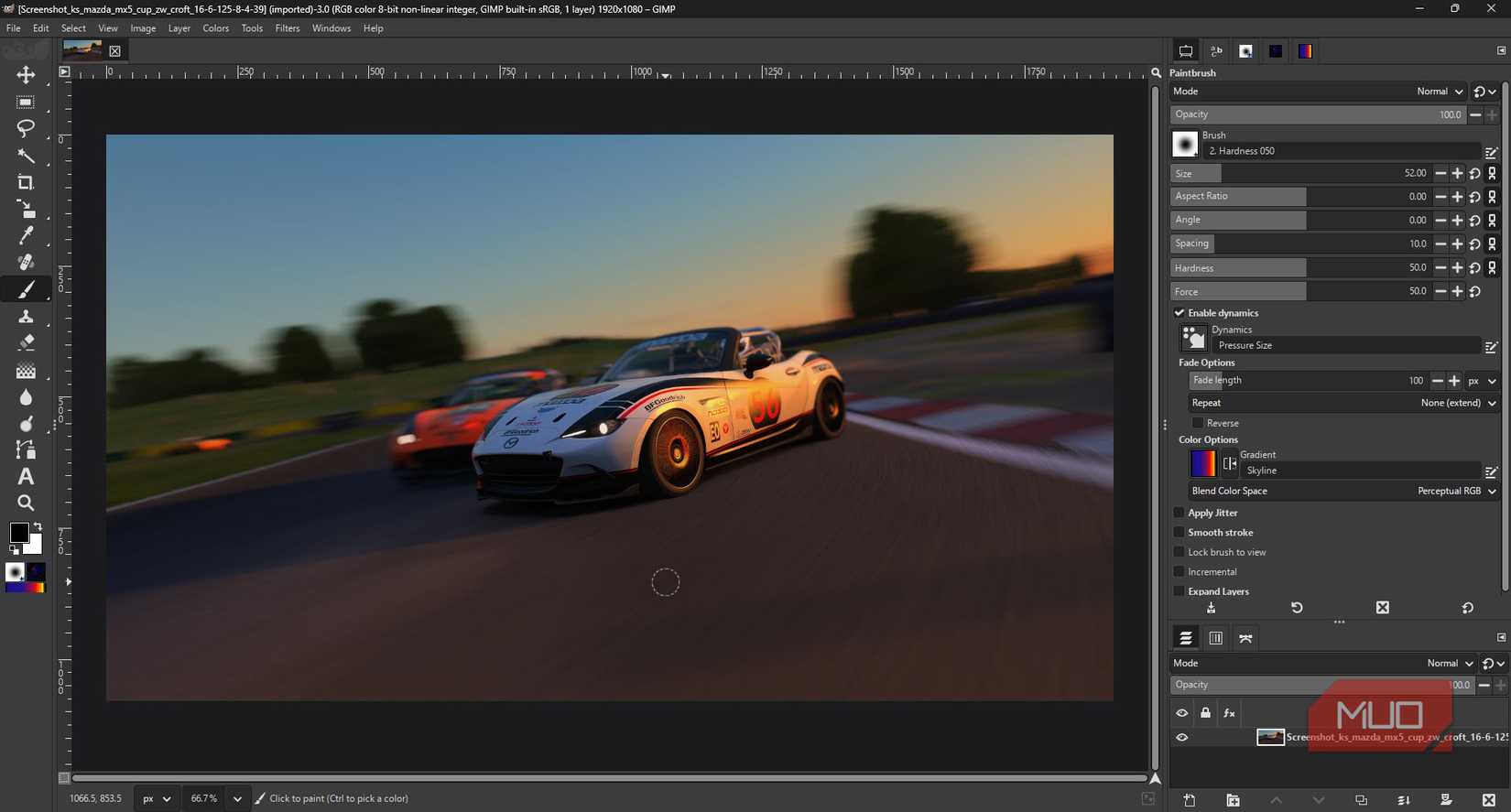
If you've been using Photoshop, you're used to a tall toolbox on the left and a stack of panels such as Layers, Adjustments, History, and so on, on the right. PhotoGIMP reshuffles GIMP's docks to approximate that layout automatically.
However, if you prefer to do things manually or have a custom layout in Photoshop, you're going to have to fine-tune things after applying the patch.
You can drag and dock any panel to build a similar workspace: keep the toolbox as a single column on the left, place Layers, Channels, and Paths in a tabbed dock on the right, and add Brushes, Tool Options, and History in additional right-hand docks as needed. GIMP's dockable dialog system lets you tear off and re-attach these panels freely, so with a bit of dragging, you can create a layout where the image canvas sits center-stage, flanked by tools and panels in the same basic position you are used to in Photoshop.
Tweak general behavior to match Photoshop
You’re not stuck with the default look, or feel

At this point, your GIMP installation will start looking and feeling nearly identical to Photoshop, but there are still some GIMP-specific behaviors that you can tweak to further get that familiar Photoshop feel.
These are mostly going to be changes you've made to customize Photoshop, though, so you're free to adjust and tweak parameters as you like. Within GIMP's preferences, you can further adjust input devices and canvas interaction so that common moves like spacebar-panning, quick toggling of docs with Tab in single-window mode, and consistent zoom behavior all align with how you already work in Photoshop.
GIMP can be as flexible as you want
These changes will not magically add Photoshop-exclusive tools and functionality to GIMP, and PhotoGIMP is at best only skin deep in terms of matching Creative Cloud features.

Related
However, what you do gain is a canvas-first, Photoshop-style layout, familiar shortcuts, and navigation behavior that makes switching between the two applications far less jarring, especially for everyday editing.





 English (US) ·
