


Published Mar 17, 2026, 11:15 AM EDT
Anu is a Features author at Android Police. You'll find her writing in-depth pieces about automation tools, productivity apps, and explainers.
Before joining AP, she used to write for prominent tech publications like iJunkie and Gizbot.
In her free time, you can find her making digital illustrations, playing video games, watching horror movies, or re-reading the classics.
For most people, Google Drive is little more than a digital filing cabinet, where you dump PDFs, store screenshots, and keep the occasional document you might need later.
If that’s all you’re using it for, you’re missing a surprising amount of what Drive can do. Over the years, Google has turned Drive into far more than cloud storage.
It now offers tools that help you automatically organize files, collaborate efficiently, quickly find documents, and even automate small aspects of your workflow.
However, many of these features stay tucked away in menus and settings that are easy to overlook.
After finally exploring some of them, I realized I’d been ignoring several tools that could have saved me time.

Related
The built-in document scanner most users ignore
Most people install a separate app when they need to scan a document with their phone, but Google Drive already includes a capable scanner built in.
On Android, tap the + button in the Drive app and select the Scan option to quickly capture receipts, forms, notes, or other paperwork.
After you take the photo, Drive automatically detects the document’s edges and converts it into a PDF. You can crop, rotate, or apply simple filters to enhance its readability before saving.
It then uploads the scan directly to your Drive storage, making it easy to organize or share.
OCR makes your files searchable
 Credit: Lucas Gouveia / Android Police
One of Drive’s most underrated abilities is optical character recognition (OCR). It can detect text inside images and scanned PDFs, and make that text searchable within your Drive.
It means you don’t need perfectly labeled file names to find what you’re looking for.
If you upload a photographed document or a scanned contract, Drive can index the text inside it. Searching for a specific phrase can surface a file you forgot existed.
On the desktop, you can also right-click certain PDFs and open them in Google Docs, which extracts editable text.
It’s not flawless, but for typed documents, it’s often surprisingly accurate.
Version history lets you recover older drafts
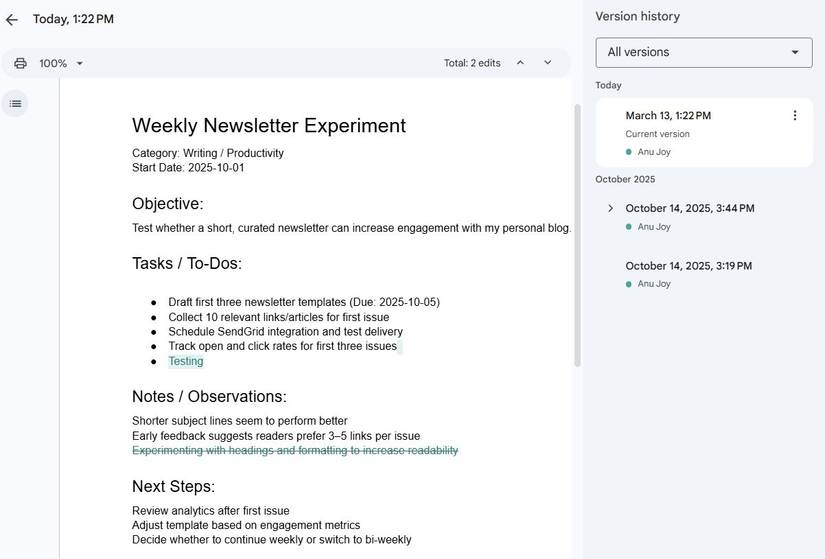
Accidentally deleting something crucial or overwriting a document can feel like a disaster, but Google Drive’s version history acts as a built-in safety net.
For files created in Google Docs, Sheets, and Slides, Drive automatically keeps track of previous versions every time someone makes changes.
You can access it by opening a document and clicking File > Version history > See version history. A panel will appear showing earlier versions of the file along with timestamps and the names of people who made edits.
You can open the version history to check the changes, and even restore an older version if needed.
It is useful when collaborating with others since it allows you to track edits and roll back unwanted changes.
It’s a feature many users forget exists, but it can quickly save you from losing important work or from fixing a mistake that slipped into the latest version of a document.
File descriptions add context
Google Drive allows you to add descriptions to files, which is a small feature that many users overlook but can be surprisingly helpful.
Instead of relying only on file names, you can include details that explain what the document contains.
To add one, right-click a file in Google Drive and select File information > Details and enter the text in the Description field. This text gets saved with the file, and anyone with access can view it.
Descriptions are useful for shared folders or collaborative projects. A short note can clarify what a file is for or whether it’s the final version.
It’s a simple way to add context without cluttering filenames or creating additional documents.
Offline mode turns Drive into a dependable workspace
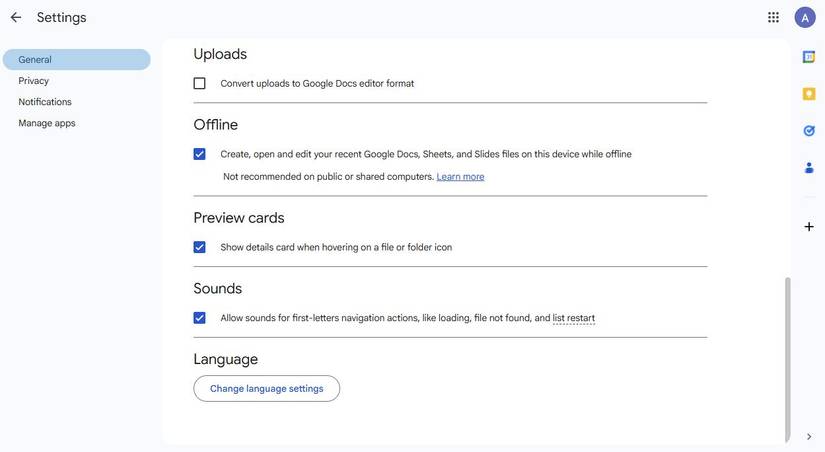
Offline mode makes Drive far more reliable than it appears. When enabled, you can open and edit Google Docs, Sheets, and Slides even when there's no internet connection.
To use it on the desktop, open Google Drive settings and enable Offline mode. On mobile, tap the three-dot menu icon next to a file name and select Make available offline.
The next time you lose connectivity, whether you’re on a flight or dealing with unreliable Wi-Fi, you can still work on your documents as usual.
Your changes sync automatically when the connection is restored.
Advanced search filters are more powerful than they look
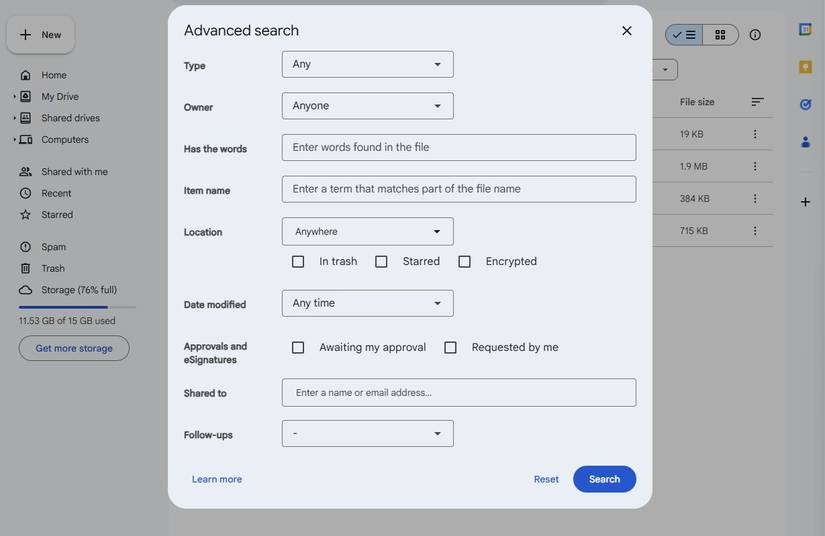
Drive’s advanced search filters make finding files easy, especially if your storage is cluttered.
Tap the filter icon in the search bar, and you’ll see options to narrow results by file type, owner, location, modification date, and people involved in the document.
For example, you can quickly find PDFs shared with you last month or documents edited by a specific colleague.
Instead of digging through folders or scrolling endlessly, you can pinpoint exactly what you’re looking for in seconds.

Related
These Google Drive features are seriously underrated
Google Drive goes well beyond basic file storage. From built-in scanning and OCR to version history and powerful search tools, Drive includes several useful capabilities that make managing files easier.
After you start using tools like advanced search filters, offline mode, or document scanning, Drive begins to feel like a lightweight productivity hub.
If you’ve been using Drive the same way for years, it might be worth revisiting some of these overlooked tools.



 English (US) ·
