


Published Feb 20, 2026, 12:30 PM EST
Shimul studied pyschology as her major but never looked back at her degree once she graduated. She began her journey in college as a social media intern and eventually became a social media manager for publications like iGeeksBlog, Guiding Tech, and MySmartPrice, along with popular tech influencers like Rajiv Makhni.
For the initial years of her career, she focused primarily on social media until she joined MySmartPrice, where she stepped into the world of consumer tech writing. That's where her love for writing really took off, especially when it comes to the Apple ecosystem, Android smartphones, and finding clever tips and tricks that make everyday life easier.
When she's not reading or writing, you'll probably find her cooking and making sure everyone tries her delicious food.
Tweaking power settings on a Windows machine can make a significant difference to how long the battery lasts. After all, battery life determines whether your laptop comfortably makes it through a workday or leaves you scrambling for a charger by mid-afternoon. The key is making sure the system is not quietly draining energy on tasks that do not need it, such as background apps or unnecessary performance spikes.
This is where this utility came in handy for me. Using it, I was able to rein in how Windows handled power consumption by limiting activity from idle applications and automatically scaling down background processes when they were not needed. This also helped lower heat output, since the system was not constantly pushing resources in the background. The impact was immediate. With fewer resources being wasted and power use more tightly managed, my laptop lasted way longer on a single charge. It reinforced how much thoughtful optimization can extend battery endurance without sacrificing everyday usability.

Related
Taking a closer look at this utility
A little tool that babysits your battery
 Credit: Shimul Sood / MakeUseOf
Energy Star X is a free, open-source Windows 11 tool with a visual interface that focuses on squeezing more life out of your laptop's battery while keeping heat levels in check. Instead of you manually hunting down power-hungry apps, it manages them in the background. The utility taps into Windows 11's EcoQoS (Efficiency mode) framework to dial back the aggressiveness of non-essential processes' CPU usage.
EcoQoS is part of Microsoft's Quality of Service system, designed for developers. It lets apps signal that certain tasks don't need full performance priority. When those tasks are marked accordingly, Windows schedules them to run more energy-efficiently. In simple terms, background activity uses far less processing power, which can significantly reduce CPU energy draw, lower fan noise, and ultimately extend battery runtime.
By leveraging this mechanism, Energy Star X limits unnecessary resource usage from background programs, helping your system run cooler and more efficiently throughout the day. To run this utility, your device must meet a few requirements.
Software:
- Windows 11 version 22H2 (Build 22621) or newer
Hardware:
- AMD Ryzen 5000 series or newer
- Qualcomm Snapdragon X series laptops
- Intel 10th-generation processors or later
If your setup checks those boxes, this tool can offer a simple way to improve power efficiency without having to look into advanced system tweaks yourself.
While the app can still run on systems using Windows 11 version 21H2 (Build 22000) or older hardware, its effectiveness may be limited. Because it's designed to take advantage of newer system-level optimizations and processor features, machines that don't meet the recommended specifications might not see the same level of power savings or thermal improvements.
Getting the ball rolling
Peeking under the hood without the grease stains
 Credit: Shimul Sood / MakeUseOf
Getting started with the app is very easy. You simply download and install it the same way you would any other program. Once installed, open it on your Windows machine, and it begins working immediately, with no complicated setup required.
The Home tab's interface is quite clear and minimal. A status message confirms that background processes are being managed, along with a prominent green check mark that indicates everything is running properly. If you want a deeper look at what is happening behind the scenes, the Log tab provides a more detailed view. It lists which processes are being restricted and which are prioritized, and includes a timeline of these actions. The layout is easy to follow, so you can quickly understand how your system resources are being handled.
You will find customization options in the Settings section within the app window. From here, you can control how the app behaves. You can set it to launch automatically when your system starts, decide whether background throttling should remain active when the PC is plugged in, and manage process access through editable whitelists and blacklists. These controls let you customize the app to your workflow rather than relying solely on default settings.
 Credit: Shimul Sood / MakeUseOf
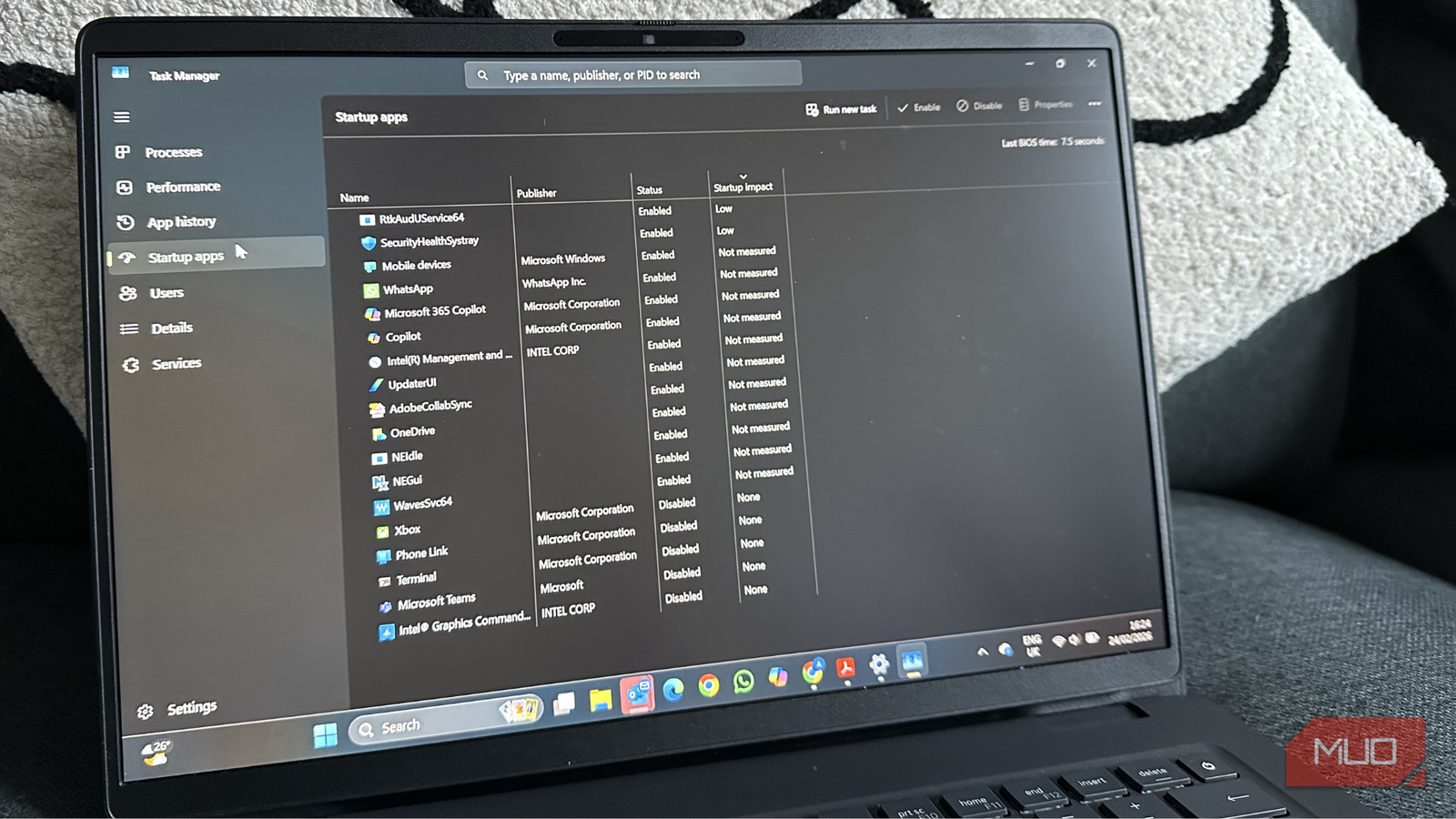
To confirm it is working, open Task Manager and check the Status column. Processes that are being limited will show a small green leaf icon, making it easy to identify which background tasks are being handled more efficiently.
There are a few things to keep in mind. Certain peripheral utilities, particularly mouse configuration software such as Logi Options+, may experience minor cursor stutter while the app is active. In addition, child processes do not automatically receive priority boosts when their parent application is in focus, and core systems are not subject to throttling.

Related
6 free apps that make your old Windows laptop feel new again
Give your old Windows laptop a much-needed boost with these apps
Letting the battery breathe for once
Battery life has always been one of the most frustrating aspects of using my Windows laptop. There were instances where I treated the charger as a permanent accessory because the battery level would dip unpredictably, even during fairly light usage. While plenty of diagnostic tools can identify which applications are consuming power, constantly monitoring those reports quickly becomes exhausting. Knowing the problem exists is one thing. Managing it every single day is another thing . That frustration is what led me to use Energy Star X.
Instead of manually tracking down power-hungry processes, the tool handled resource management in the background by preventing idle or unnecessary applications from quietly draining power. I found myself relying less on the charger and feeling comfortable stepping out with it.
By curbing wasted background activity, the utility helped my system use energy more intelligently. The improvement in battery life has been consistent enough that it feels like a quality-of-life upgrade. If your Windows laptop struggles to give you the battery life you deserve, exploring an option like this could be worth your time.






 English (US) ·
