


After joining MUO in 2014 and earning a degree in Computer Information Systems, Ben left his IT job to go full-time with the site in 2016. He joined the editorial team in 2017 and has climbed the ranks since then.
As a writer, his specialties include Windows, Android, Gaming, and iPhone explainers and how-tos. He's been mastering Windows since 2009, got his first Android phone in 2011, and has used an iPhone daily since 2020. His work has been viewed over 100 million times.
Now, as a Senior Editor at MUO, Ben leads the Devices and Home segments, leading by example by writing dozens of high-quality articles each month.
Outside of work, Ben loves experiencing new video games, exploring music, learning new information, and enjoying time with friends. While MUO is his home, he also wrote briefly for Nintendo Life and has contributed to various company blogs.
The faster your PC boots, the sooner you can start doing what you want with it. If you’ve never configured your computer’s startup apps, then you’re wasting time every time you turn it on.
Having apps that you never use, or only need on occasion, launch immediately with your system is unnecessary. But you don’t want to disable everything that runs at boot; knowing what to leave and what to remove is crucial. I’ve disabled many apps from running at boot on my computer, and I’m cautious about what new apps I let run.
Understanding startup items
What’s running from the top?

As the name indicates, startup items are apps set up to run every time you log into Windows. If you’ve used your PC for a long time, there are likely dozens of these that you might not even know about.
Apps commonly set themselves to run at startup after you install them. This can be convenient, but you don’t need everything running at boot. Each app delays your system from being ready to use, plus it means another process is running in the background and using resources.
We’ve covered the how-to of managing startup apps before, so I won’t repeat that. Instead, let’s walk through the biggest types of apps that you should remove startup privileges from—many of which I’ve disabled myself over the years. What’s right for each person depends on their use; from my experience, these are the categories you should consider.
Manufacturer bloatware
These deserve no place on your PC

The first category of apps you should remove shouldn’t even be on your computer. Pre-built PCs are notorious for including manufacturer apps that duplicate Windows functionality, plus trials of security and cloud storage apps that nag you to upgrade after a short time.
A select few manufacturer apps can be useful, like those that let you check for driver updates. But you don’t need redundant battery managers, free trials of McAfee, and anything else that you have no reason to open.
You’re best off removing these bloatware apps from your PC, which will clear them from startup in the process.
They’re there when you need them

Communication tools like Discord, Zoom, Telegram, and similar set themselves to run at startup. While this can be useful for apps you use daily for work or chatting with friends, you don’t need them all. Plus, having these open immediately means you’re more likely to get bombarded with notifications, which affects your focus.
If you only use your PC for gaming and have Discord open all the time, then running it at startup makes sense. But if you make a Zoom call once a month, you don’t need the app running all the time.
Similarly, streaming apps like Spotify and Netflix don’t need to run every time you boot. They start quickly when you need them, and nothing about them is enhanced by being always-ready.
Gaming clients
Don’t let updates slow down your boot

Gaming clients like Steam and Epic Games are similar to the above. If you’re a gamer who plays regularly, it makes sense to have your clients run at startup—that way, game updates install before you’re ready to play.
But otherwise, save time at startup by disabling these. Game updates can be dozens of gigabytes; I notice my system slowing down when they’re running at full-speed. It’s better to open these clients when you’re not otherwise busy to install updates on your schedule, or at least limit the download speed to reduce drag on your system.
Multiple browsers
Only your primary one needs to run
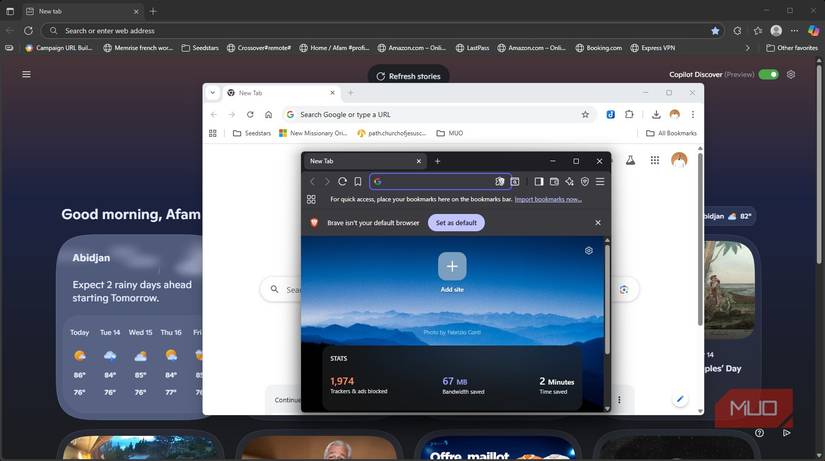
Your browser is home to much of what you do on your PC these days, so running your chosen browser at startup is justified. However, while using multiple browsers has benefits, you don’t need to run them all at boot.
If you stick to one browser most of the time, don’t waste resources by having others run when you log in.
Anything you rarely use
If it’s not saving you time, don’t run it

As you scroll through the list of startup apps, it’s helpful to think about how often you use the apps listed. Some programs are important, but not frequently used enough to run all the time.
From my own list, this includes apps like PDF readers and note-taking tools. You don’t need remote-access utilities like TeamViewer to run at boot unless you use their unattended access features. If you never use Copilot, disable it, or at least prevent it from running when you launch Windows. Microsoft Office can launch when you open a Word or Excel document; it doesn’t need to hang out all the time.
Apple’s tools fall under this group. On Windows, the company now offers separate apps for Apple Music and Apple TV, which we covered above. In addition, you might have the Apple Devices and iTunes apps installed.
iTunes is all but deprecated now; it only supports audiobooks and podcasts. Apple Devices is a useful tool for backing up your iPhone to your computer and syncing any local content you own. But if you use this at all, it’s likely a few times per year.
Some software should run at startup
Don’t disable it all without thinking

While you can remove plenty of apps from startup and reap the benefits, you shouldn’t go nuclear on the list. Certain apps save you time by running at startup, as they’d be annoying or even dangerous if you had to start them manually.
To keep your system protected, all security apps (including Windows Defender, plus VPNs if you use them all the time) should run at boot. Backup tools should be set-and-forget, so leave them running at startup too.
Some people say you should disable cloud storage syncing apps, but I disagree. The value of cloud storage syncing is that your files are everywhere without you having to think about it. If you disable Google Drive at startup, then you have to remember to run it every time, or none of your changes will sync. That could cause problems if you need to check a file while you’re out and only have your phone.
Otherwise, my rule is to leave an app enabled at startup if having to launch it myself would be annoying. For example, I take screenshots every day, so when I hit the Print Screen key, I want Snagit to open. The same goes for useful Windows utilities like clipboard managers; anything you expect to run without thinking is worth keeping.
It’s also important for apps that control computer accessories—tools from Razer, Logitech, and similar that control keyboard remappings or mouse sensitivity should run at startup.
Clean up your startup apps today
Startup apps are a useful tool, but they quickly become overkill. Be critical when evaluating which apps you need to run all the time, and which you’re fine with opening manually. If you’re not sure, try disabling a tool and seeing how often you have to open it manually. That should tell you how much you rely on it.
Check back on the list regularly, since new apps appear even if they don’t alert you. Startup tools should work to save you time, rather than working against you as a list of clutter to close every time you start your PC.






 English (US) ·
