


Published Feb 17, 2026, 2:00 PM EST
Pankil is a Civil Engineer turned freelance writer from Ahmedabad, India. As a long-time Windows and Android user, he has extensive knowledge of both operating systems and specializes in creating how-tos and troubleshooting guides.
Pankil has been writing about Windows, Android, and iOS since 2021. He has written over 1200 articles across reputable publications like MakeUseOf, GuidingTech, and TechWiser.
Outside of his writing endeavors, Pankil is an avid football fan and loves to plan his international travels with his wife in his free time.
Setting up a Windows PC often involves installing a collection of “essential” utilities. These usually include everyday tools that either aren’t available by default, or simply not up to the mark. For years, this meant downloading compression tools, cleanup apps, driver updaters, screenshot utilities, and third-party antivirus programs. Installing these felt like a necessary step to get your PC ready for everyday use.
But Windows is no longer the barebones operating system many people remember. In the past few years, Microsoft has added or improved its built-in tools to handle these tasks just as well, if not better. And as a result, most of these popular third-party apps that were once considered essential are no longer necessary.
Windows can handle archives on its own
 Credit: Pankil Shah/MakeUseOf
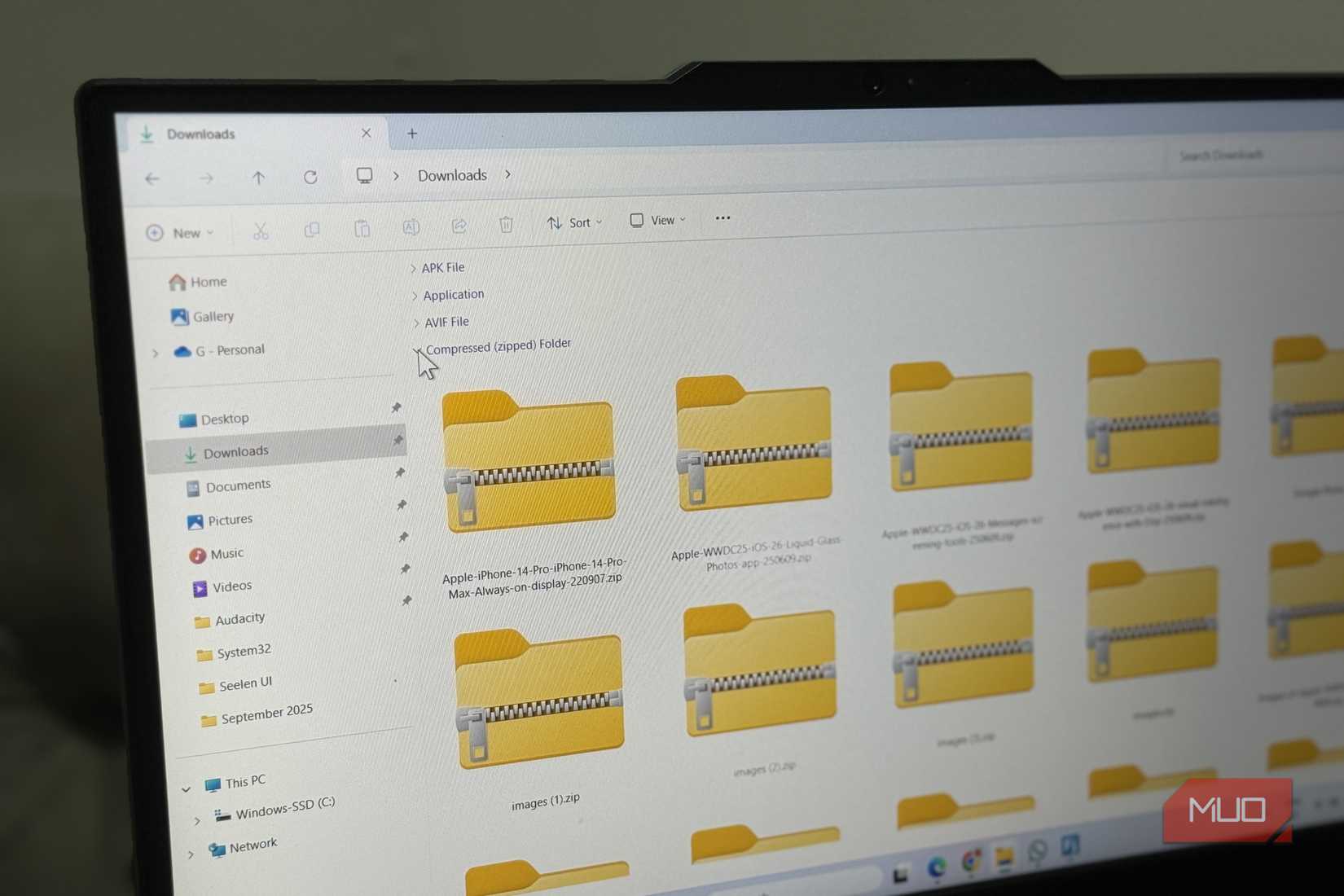
File compression tools are essential, which is why installing WinRAR or 7-ZIP is almost a ritual for most people. These tools make it possible to open downloads, shrink files, and bundle folders for easy sharing.
Today, though, Windows can handle ZIP files without any extra help. You can right-click a file, choose Compress to ZIP, and share it easily. Windows can also open ZIP archives on its own and it supports formats like RAR, 7Z, and TAR out of the box. Even password-protected archives open smoothly, without any software.
This means having tools like WinRAR and 7-Zip installed is no longer necessary, unless you need any of the specific features these tools offer, like splitting archives, maximum compression levels, or repairing broken ZIP files.
System cleanup tools
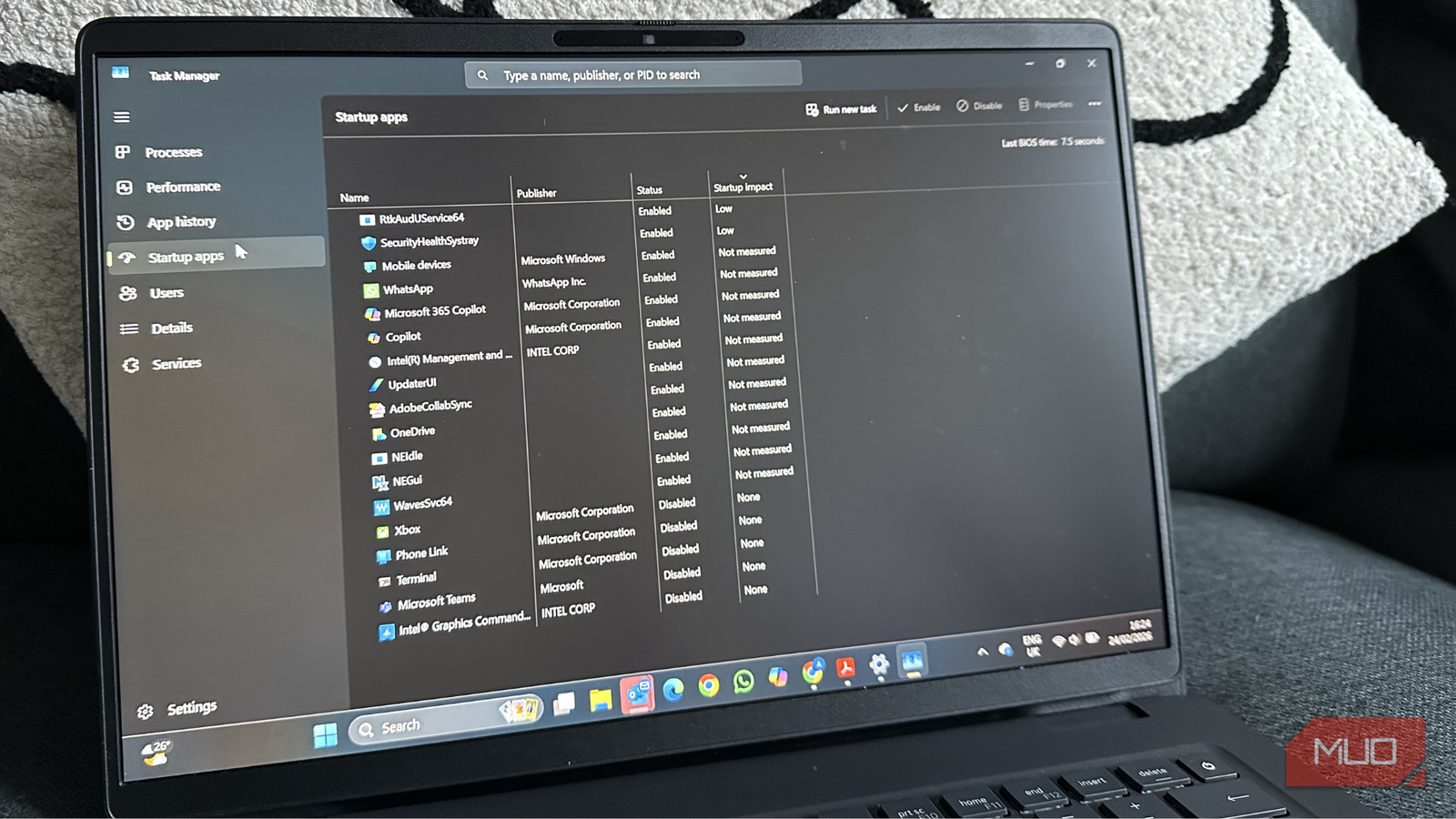
Built-in cleanup tools are all you need
 Credit: Yadullah Abidi / MakeUseOf
System cleanup tools like CCleaner and BleachBit promise to sweep away every useless file on your PC and free up much-needed storage. For years, these tools felt essential for PC maintenance.
But the truth is, you don’t need any outside help to clean your PC. Windows already includes built-in tools that essentially do the same job. For instance, Disk Cleanup can help you remove junk files, system cache, and old Windows update files in seconds. Even better, you can automate the entire process of cleaning up these unnecessary files with Storage Sense.
And while these cleanup tools also promise to optimize, Windows 11 doesn’t really need it. If you ever run into any issues, the built-in maintenance commands are usually enough to restore performance.
Driver updaters
Driver management is built into Windows
 Credit: Yadullah Abidi / MakeUseOf
Drivers are an essential piece of software that allows Windows to communicate with your PC’s hardware. And much like your apps, they need to be updated regularly so everything, from your graphics card to your Wi-Fi adapter, works smoothly. Earlier, this meant you either had to download driver updates from the manufacturer's website or use a dedicated tool.
That’s no longer necessary though. When you check for software updates on your PC, Windows also downloads and installs important driver updates. It all happens in the background. Less critical updates show up in the optional updates section, so you have control over what gets installed.
Besides Windows updates, most PC manufacturers also include their own software for checking and installing driver updates. For instance, Dell laptops have SupportAssist, and Lenovo PCs come with Lenovo Vantage. So yes, if you’ve a driver updater tool installed, it’s probably best to retire it.
Screenshot apps
Snipping Tool is more powerful than you think
Windows has included a dedicated screenshot tool for years, but for a long time, it was very limited. You could only capture basic screenshots, and there were no extra features like screen recording or proper annotation tools. This often meant you had to install third-party apps like Greenshot and ShareX to get the job done.
Over the past few years, however, Windows’ Snipping Tool has improved significantly. It now includes almost everything you might need to capture your screen. You can annotate screenshots with built-in tools for highlighting and drawing. It also includes useful extras like OCR for extracting text from images, a color picker, and visual search. For most users, these features make third-party screenshot tools unnecessary.
Antivirus programs
Windows already has you covered

This one might come as a surprise to some, but yes, your Windows PC doesn’t need a third-party antivirus program. That’s because the built-in Microsoft Defender is now more than capable of keeping your PC protected from any threats. According to AV-TEST, an independent antivirus testing organization, Microsoft Defender is just as capable as many popular antivirus tools in terms of protection, performance, and usability.
Microsoft Defender has enough features to detect threats in realtime, protect from ransomware, and block suspicious apps. It’s also free to use and deeply integrated into Windows.
This means having a dedicated antivirus tool like McAfee, Avast, or Norton is no longer necessary. In fact, these antivirus programs can actually do more harm than good because of how they operate and all the extra features they offer.
The biggest benefit of skipping these apps is that your PC stays lighter and easier to manage. Of course, this doesn’t mean third-party tools have no place at all. Those who rely on specific features that only these apps provide can still benefit from them. But for most users, the built-in Windows tools are more than capable of getting the job done.





 English (US) ·
