


Published Feb 3, 2026, 6:00 PM EST
Sagar holds a bachelor's degree in electronics engineering from Swami Vivekananda Technical University in Bhilai. He later completed his MBA in finance and marketing from SSIM, Hyderabad. Sagar is also a Google-certified Digital Sales and Marketing professional and has a Six Sigma White Belt in Business. He also holds certification in SEO, Bing Ads from Microsoft, and Business Analytics.
Sagar started his career in finance after earning an MBA, working at a leading multinational corporation in London. However, his passion for technology eventually led him to shift gears and explore content writing. His journey began with ThemeFoxx, where he discovered his knack for simplifying complex tech topics. Over time, he expanded his expertise, writing for some of the most well-known tech publications and IT brands. His bylines now appear in over a dozen outlets, including SlashGear, Neowin, TechPP, Android Police, SamMobile, Android Headlines, Guiding Tech, and Tech Wiser.
With his vast experience of almost a decade, Sagar is adept at crafting breaking news articles, insightful how-tos, engaging listicles, and informative explainers. He also has the expertise necessary to tackle any technology-related topic.
Although Google Chrome has been at the center of resource-hogging jokes, in my experience, it's rarely been unusable. Unfortunately, that changed recently. While juggling multiple tabs for a research topic, Chrome suddenly hit a wall. Switching tabs became a struggle, and the whole Google Chrome interface felt jittery. Strangely, everything worked fine in Microsoft Edge.
I dug into the Task Manager to find the root cause and was surprised by what I found. It wasn’t Chrome acting up; it was actually Windows 11 trying to be too helpful. If one of the popular browsers, like Google Chrome, suddenly feels like it is running in slow motion, here is why a specific Windows setting is to blame.
Related
Don’t Let Chrome Gobble RAM—Activate This Hidden Setting
Google Chrome is wonderful, but one of its biggest issues persists.
Efficiency mode is the real culprit
This power-saving feature is a nightmare for web browsers
 Credit: Sagar Naresh/MUO
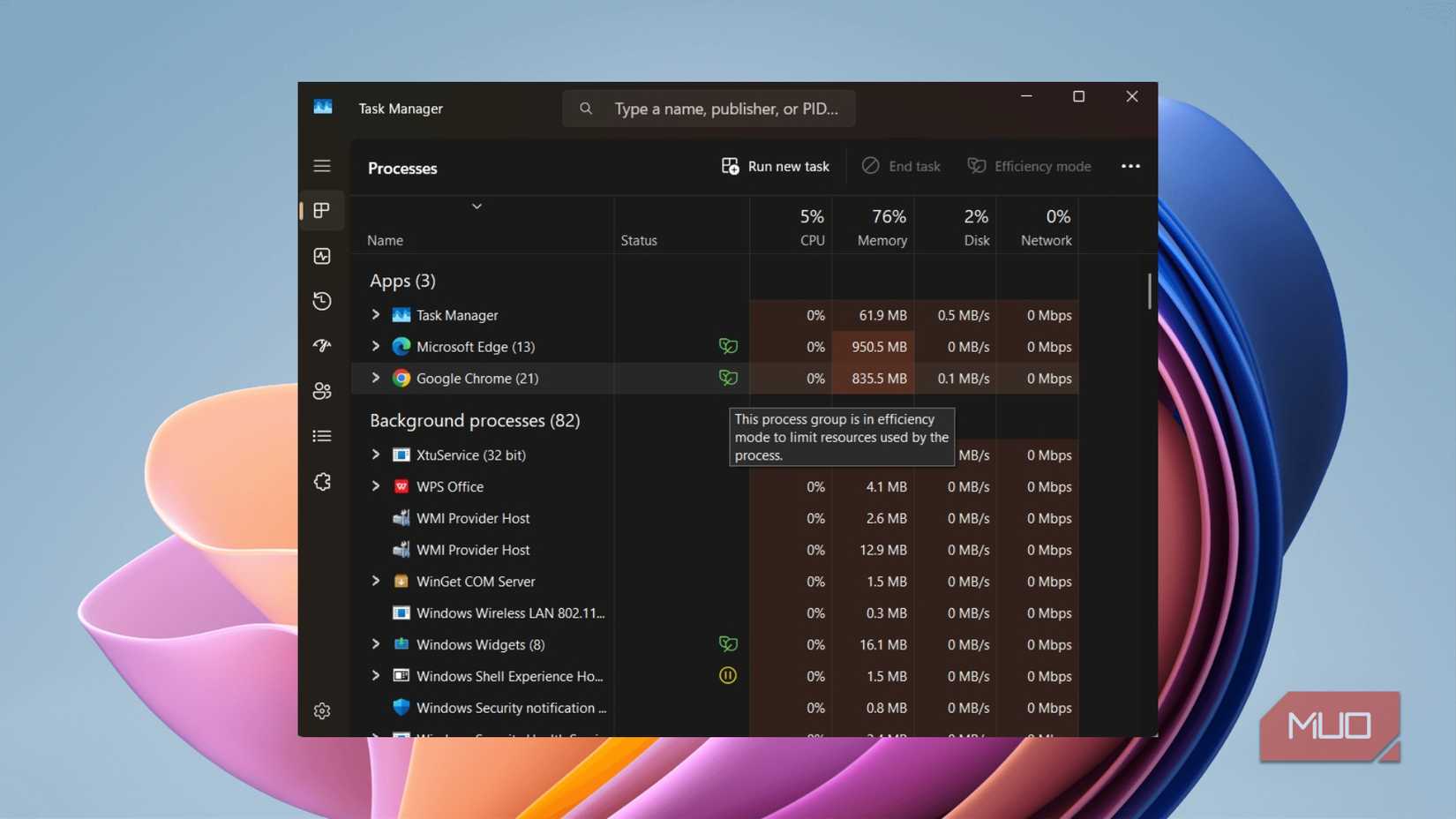
Microsoft added the Efficiency mode to Windows 11's Task Manager with the 22H2 update. In simple terms, it is a feature designed to save power, giving you more hours to work by extending your laptop’s battery life. Efficiency mode achieves this by throttling background apps.
Generally, some applications continue to consume system resources even when running in the background or idle. This, in turn, leaves very few resources available for applications that the user intends to use. Which is why you may start hearing more fan noise and thermal throttling, as well as reduced battery life.
With the new Efficiency mode (similar to Eco Mode in Windows 10), when Windows detects that an app is using too many resources, it puts that app into Efficiency mode. Just like a highway, Windows moves Chrome from the fast lane to the slow lane so that more important tasks can drive faster.
But the effect is not significant, especially for users like me who use web browsers extensively. Modern browsers like Google Chrome treat every tab and extension as a separate process. When Windows starts aggressively throttling these processes, your browser begins to choke and malfunction.
How to check if Efficiency mode is the problem
A simple check can reveal the real culprit
 Credit: Sagar Naresh/MUO
Before you go ahead and completely disable this feature, it is important to know what is actually causing the issue. There is a chance that Efficiency mode is not the cause of the lag you are experiencing.
Here’s how to check if Efficiency mode is the problem:
- Launch Google Chrome.
- Open any website on it, preferably a video or something that is heavy.
- Press Ctrl + Shift + Esc to open the Task Manager.
- Look at the list of resources. If you don’t see any details, click on More details at the bottom.
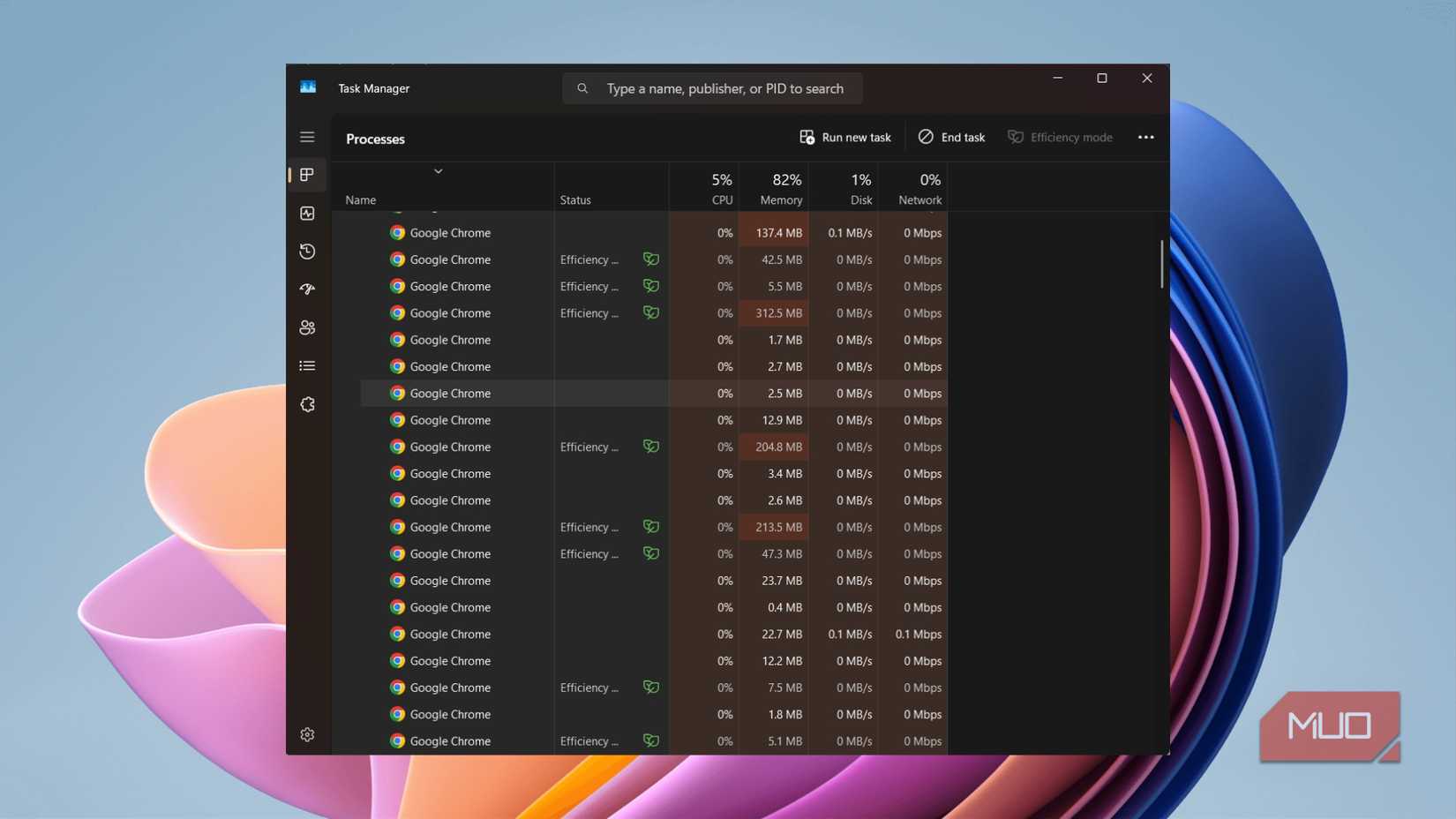
- Locate Google Chrome in the list, then click the little forward (>) arrow next to it to expand the processes.
As soon as I did this, I was shocked. Next to almost all the Google Chrome processes, there was a little green leaf icon. That leaf indicates that Windows has automatically applied Efficiency mode, which is why Chrome, for me, felt jittery: it was doing the heavy lifting with a tiny bit of resources.
You can disable Efficiency mode by right-clicking on the process and unchecking the option. However, that is just a waste of time because it will be reapplied immediately, as Google Chrome automatically chooses Efficiency mode by default.
You can permanently disable Efficiency mode
A hack can help the Google Chrome browser work with all the resources
Since the Task Manager toggle is unreliable and turns on Efficiency mode again, you have to use a little hack to permanently disable this feature. Do not worry; turning off this feature won’t harm other processes.
There are a lot of articles suggesting that by opening your Google Chrome shortcut properties and adding --disable-features=UseEcoQoSForBackgroundProcess to the Target field, you can disable Efficiency mode. Unfortunately, after a few updates, this trick no longer works.
However, we have found a solution, and for that to work, you have to install a nifty tool called Process Lasso. Here's what you need to do:
- Head over to the official website and download Process Lasso. The free version works perfectly fine.
- Install Process Lasso, then open it.
- Click on Options.
- Navigate to CPU -> Efficiency Mode.
- In the Process match field, enter the name of the software you wish to disable Efficiency mode for. In our case, it is chrome.exe.
- Type chrome.exe in the field and select the Off option for Efficiency mode.
- You will see chrome.exe shows up under the Process match section, and under the Efficiency mode section, it is changed to Off.
- Click on OK.
- That's it!
You will see that the green leaf Efficiency mode icon has vanished from all of your Google Chrome processes in the Task Manager. This way, Google Chrome will run at its full potential, eliminating bottlenecks that cause stuttering, lag, or unresponsive Chrome tabs.

Leave Chrome’s internal Memory Saver on
It actually is less aggressive and much smarter
 Credit: Sagar Naresh/MUO
Aside from Microsoft’s Efficiency mode, Google Chrome also has its built-in Memory Saver mode. However, it is much more effective and works better, so you would want to leave that on.
You can turn it on by:
- Click on the three-dot icon in the top-right corner of Chrome.
- Heading over to Settings -> Performance.
- Toggle ON the Memory Saver feature and set it to Balanced for better performance and better battery.
What Chrome’s Memory Saver does is that it only freezes the inactive tabs or the tabs that you haven’t opened for a long time. But instantly wakes them up as soon as you click on them.
Give Google Chrome its wings back
After disabling Microsoft’s Efficiency mode, I haven’t experienced any issues such as YouTube videos dropping frames, unresponsive tabs, or text taking longer to type. It is an irony that a feature that was meant to make the workflow efficient makes it inefficient.






 English (US) ·
