


Published Mar 22, 2026, 12:01 PM EDT
Kanika began writing about consumer technology in 2019 and has contributed to tech websites like Beebom and The Mac Observer. During her journey, she covered a wide range of topics, including Android, Windows, AI, and everything Apple. She has been a loyal iPhone user since 2014, and owns an Apple device from almost every lineup. With a keen eye on the latest trends, she strives to help users get the most out of their gadgets.
Beyond her love for writing, she is a deep researcher and a lifelong learner, always eager to explore the latest innovations and emerging technologies. With her passion for technology and writing, she joined MUO in 2025 as a Freelance Tech Writer.
When not writing, she's probably trying a viral Instagram recipe or watching some thriller suspense on Netflix.
Whenever a PC slows down or apps take forever to load, your first instinct is to perform a restart. Well, we've all done that. Yes, rebooting can help clear things up. It can also resolve common software glitches and performance issues. It’s good to restart your PC once a week. That being said, restarting can’t fix every problem on your PC. If the system feels slow or laggy most of the time, the real problem lies in how you’ve configured your Windows settings.
Instead of rebooting your PC all the time, you can follow smarter tweaks to improve performance. You just need to change three Windows settings to make your PC faster and more responsive.
Disable unnecessary Startup apps
Don’t forget unused and background apps
Startup apps are software programs and tools that launch automatically when you turn on your PC. They are often used to allow essential tools like antivirus and lightweight utilities to run as soon as Windows boots. While they provide convenience, excessive startup apps like media tools and cloud storage can slow down boot times. This impacts the overall performance of your machine, making it slow and sluggish.
You will usually find essential utilities, cloud syncing, communication apps, and media tools in startup apps. Some other apps may also sneak in without your knowledge. When combined, these apps can make a huge difference to performance. Every startup app uses disk, RAM, and CPU resources. Your machine is already doing a lot, even before you start your first task. This makes your PC slow and underwhelming.
To fix this, you should disable unnecessary apps from launching every time you turn on or log in to your PC.
- Press Ctrl + Shift + Esc and open Task Manager on your system.
- Click the Startup apps tab and check the Status column.
- Sort the apps by Startup Impact. This will show you how much an app slows down your PC during the boot process.
- If you don’t need an app at the startup, right-click it and select Disable
Doing this will immediately reduce background clutter. Just make sure that you don’t disable any important processes like core system services and security software.
Clearing up your startup apps list is one of the best ways to speed up your PC without spending anything.
I would also recommend uninstalling apps that you don’t use or need on your system. You can go to Settings -> Apps -> Installed apps and remove anything you don’t need. You must also turn off background activity for non-essential apps like game launchers and email clients that you rarely open. Go to your installed apps, find the app you wish to restrict, and click on the three dots. Choose Advanced options and change the Background app permissions to Never.
Switch to Best performance mode
Unlock the best performance
Your Windows PC offers Power Modes that let you balance performance and energy efficiency. By default, the Power mode is set to Balanced, which underclocks CPU and GPU usage for lighter tasks. It automatically underclocks CPU and GPU usage for tasks that don’t require full power. This setting saves energy, but can also throttle performance more than you realize. This is because the Balanced mode focuses on efficiency and not performance.
You might not realize a difference during casual tasks like browsing. When you launch a demanding task, the Balanced mode doesn’t allow the CPU and GPU to run at maximum. The speeds are scaled gradually. This can make you feel that your PC isn’t performing the way it should.
To unlock these limits, you can switch to the Best performance mode that allows your CPU to run at higher speeds. This will offer you fast and responsive behavior across the system.
- Go to Settings -> System.
- Navigate to the Power & battery section and click Power Mode.
- Select Best performance from the drop-down menu.
You can choose Best performance for Plugged In and Balanced for On battery. That’s because Best performance consumes more power and can increase heat output, especially under load. If you’re facing battery drain or overheating problems on your PC, you can switch back to the Balanced mode.
Free up disk space
Make room for what matters
When your PC is running low on storage, you will experience slow performance, no matter how many times you restart it. When the drive becomes full, your Windows PC struggles to manage virtual memory and temporary files, which can degrade performance.
To maintain good performance, aim to keep at least 10–15% of your drive free, and ideally 15–20% if you do heavy workloads.
If you’re stuck with a slow machine or your apps crash frequently, you must check disk space. In case it’s almost full, you must free it up to improve boot times and app performance.
You can use Storage Sense to automatically free up your space without deleting important files. It will only delete unnecessary files like Recycle Bin items and older downloads.
- Go to Settings -> System -> Storage and turn on Storage Sense.
- Click on Configure Storage Sense and customize it as per your requirements.
You can choose to run Storage Sense now to free up some space immediately.
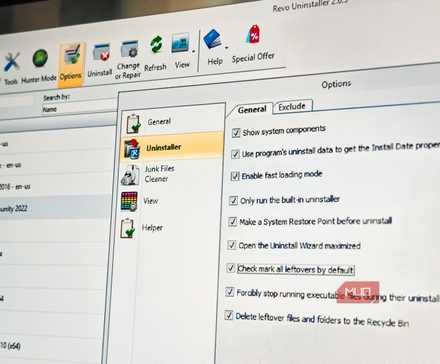
Related
Here's how I deep clean my Windows PC
I spend one day each year to keep my Windows PC running like new.
Why do these settings work better than restarting
When you restart your PC, it clears the temporary memory, giving a fresh start to the system. However, it doesn’t fix the root cause of a slow PC. If there are too many startup apps at launch, your PC will slow down again, even after multiple restarts. If your power settings are capped, you won’t enjoy the best performance. And if your storage is almost full, nothing can stop your PC from slowing down.
These settings work on the root cause of the problem. Limiting startup and background apps will reduce system load. Best performance mode reduces aggressive throttling and allows the CPU to run at higher sustained clocks, helping you get closer to your hardware’s full potential during demanding workloads.
And storage cleanup ensures your Windows PC has enough room to operate properly.
Restart is a quick reset, but these settings offer long-term solutions.



 English (US) ·
