


Published Mar 6, 2026, 8:30 AM EST
Faith writes guides, how-tos, and roundups on the latest Android games and apps for Android Police. You'll find her writing about the newest free-to-play game to hit Android or discussing her paranoia about digital privacy and poor smartphone practices.
She will occasionally dabble in Samsung's latest features in One UI. On the games side, her area of expertise is in action RPGs and gacha games, but she will play and study the occasional competitive shooter. But most of all, her appetite for new stories still goes unquenched — as shown with her personal love for the Trails series.
Before joining Android Police, Faith studied Chemistry and graduated with an honors specialization in Chemistry in 2016, leading her to spend many hours toiling around the lab as an undergraduate. Eventually, all those hours spent at the lab led Faith to develop her analytical mindset. So now, if you give Faith a problem, she will relentlessly tackle it to find a solution.
Her favorite pastime as a student was always writing reports, presentations, tutorials, and literature reviews, which guided her into completing a graduate certificate in technical writing. Thanks to her time writing for Android Police, she has an ignited passion for user security and privacy and is currently pursuing her certification in Cyber Security.
Faith's first Android phone was the Samsung Galaxy Note II in 2012, giving her a taste of how a small piece of powerful hardware can open up endless opportunities for her favorite hobbies. Though if you ask her about her purchasing regrets, she will always say missing out on the Google Nexus still stings to this very day.
She's also been a gamer for over 20 years, starting with Super Mario Bros. on the NES; she has owned over 15 devices for gaming, ranging from handhelds to consoles. Now, with her analytical mindset, passion for writing, and core identity as a gamer, she can finally chase her dreams as a technical writer and gaming journalist.
Nowadays, you'll find Faith studying spreadsheets and assembling data to theorycraft new teams and builds for Genshin Impact, Honkai: Star Rail, Wuthering Waves, and Zenless Zone Zero. You'll also see her digging deep to discover Android gaming's most hidden gems, along with productivity apps and AI features.
Home screen cleanup is something I constantly procrastinate on. I have so many apps on my home screen that shouldn't be there, and it keeps getting worse over time.
Thanks to that, I rely on my Edge Panel much more. I couldn't live without using Edge Panels on my Samsung Galaxy S25+.
Edge Panels are another Samsung One UI quirk, so if you don't have a Samsung device, you'll sorely miss this feature — though you might be able to replicate a similar side panel experience.
It is also one of my favorite features to check when a new One UI update comes out. I generally revisit it every few months to see what else I can do with those swipe-in menus.
It makes multitasking between my apps much easier. Plus, tools like my compass and ruler are easy to access when I need them.
As a result, I decided to reduce the digital clutter on my home screen and make full use of my apps' Edge Panel. Here's how I set it all up.
Related
Enabling your Edge Panel in your Samsung settings
Visit your display options to find this crucial toggle
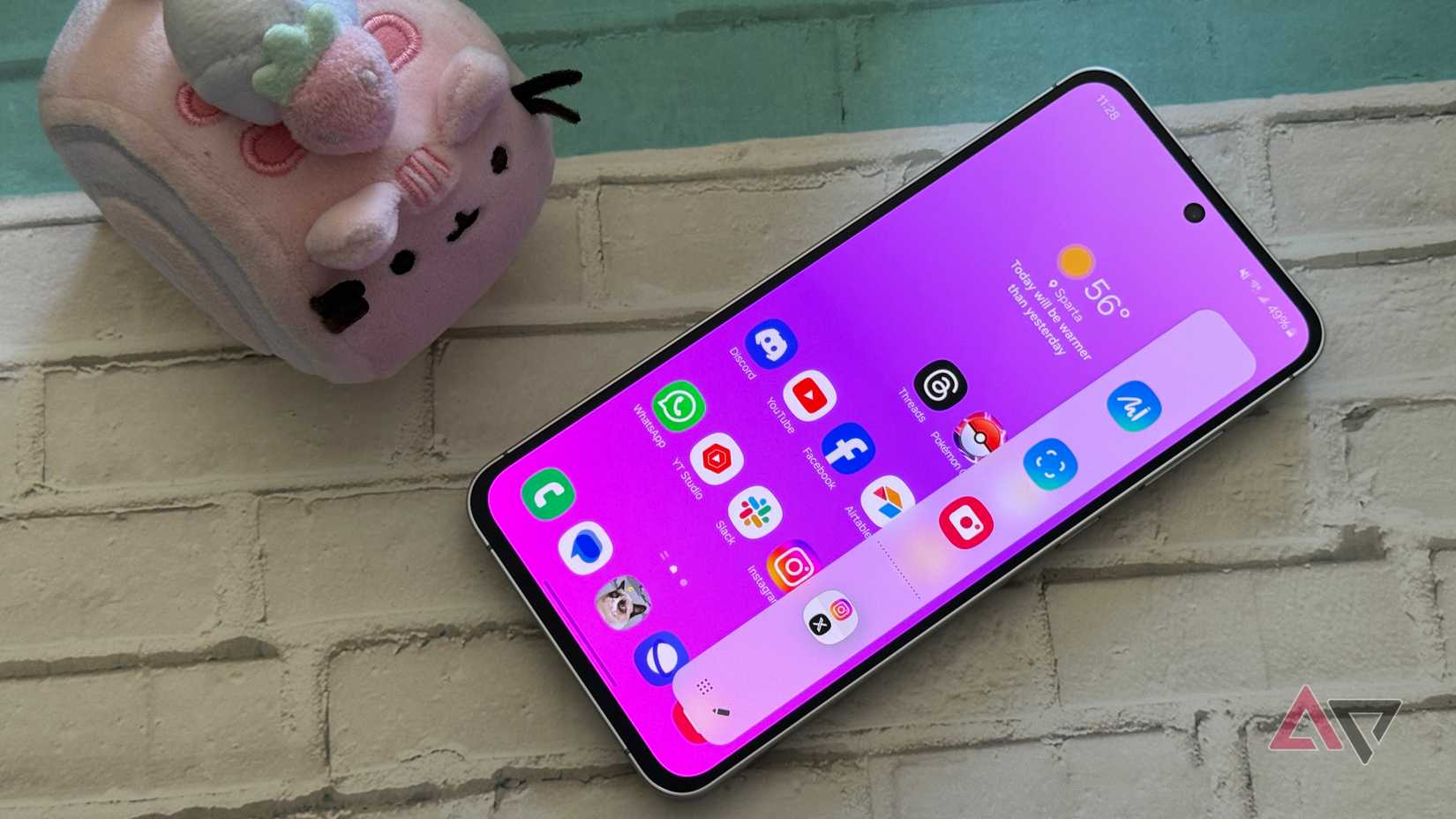
If you've never used your Edge Panel, you might not know where it is or how to enable it.
I do a quick check of my settings when I download a new update, to make sure my favorite settings stay intact or transfer over properly. I had done this with my One UI 8 settings.
To quickly check whether your Edge Panel is enabled, look for a handle when you unlock your phone. The handle should be translucent and appear on the very right side of your screen by default.
The handle is mostly tucked in, but if you don't see one. You probably don't have it enabled. To enable your Edge Panel, go to Settings > Display. From there, toggle on Edge panels.
after it's enabled, the handle should appear on any screen or app you're in. Swipe it to the left side to open it. Then tap anywhere else on the screen to collapse it.
If you want to access your Edge Panel tools, such as a compass, flashlight, or ruler, you will need to swipe left once more.
It will stay on the current tool you have selected, but it is easy to swap. Tap the three-dot icon in the upper-right corner of the panel to change between the tools.
I love using my flashlight this way, just because I am one of those peculiar users who still keep their notifications panel separate from their quick panel, and sometimes I swipe wrong and open my notifications instead of the quick panel (since that is one of the easiest methods to access my flashlight).
So I stick to my Edge Panel to access my flashlight most of the time, rather than using my quick panel.
Customizing your Edge Panel to keep your home screen tidy
The feature provides many helpful app shortcuts
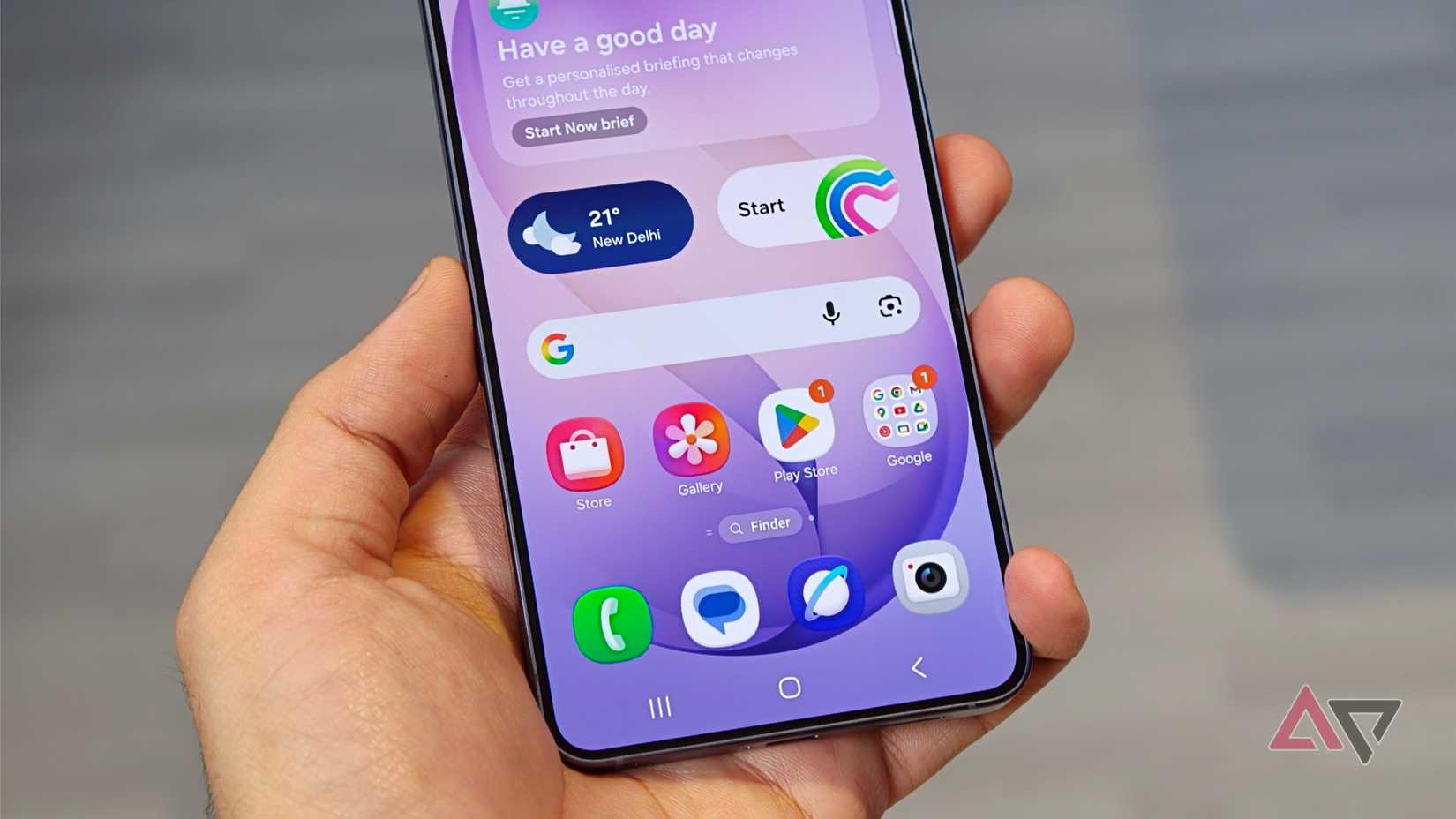
The Edge Panel is fantastic for keeping your screen much less cluttered, and it takes about the same amount of time to open your panel as it does to access your home screen.
Though one advantage is that the Edge Panel is available across all my apps, so I like that I can use it to check something quickly without having to suspend my app, go to the home screen, and find the app.
The Edge Panel is probably my favorite thing to customize. You can add a list of apps by tapping on the pencil icon below the expanded panel. Select an app from the grid and then hold and drag the icon to an empty spot.
You can repeat this for a bunch of apps even after you fill the initial 14 slots; you will just have to scroll down vertically to see the rest of your apps.
I don't like adding more than 16 apps since it's just going to get cluttered, and I might start forgetting which apps I have on my Edge Panel versus ones I left on my home screen.
If you have real estate on your device's screen, the Home Up module in Good Lock can rearrange it so you see three app columns instead of two.
You can also create app folders with your icons on the Edge Panel. To do this, simply drag and drop an app icon in your Edge Panel onto another app icon to create a folder.
Another nifty trick is that you can add split-screen app pairs to your edge panel.
You can do this easily by opening two apps in split-screen mode, then tapping the middle of the split-screen app pair (the three-dot icon) to find an option called Apps edge panel. Tapping that will add the pair to your Edge Panel.
In the editing settings for your Edge Panel (the pencil icon), you can add apps in split-screen view from the panel. Select the three-dot icon in the upper-right corner of the edit section to open more options.
You can choose the Touch and hold or Tap option. I prefer to use the touch-and-hold button since that's just muscle memory for me.
You can also remove the Galaxy AI Edge Panel shortcuts by tapping the icons in the More menu (the three-dot icon in the editing settings).
If you want more from Edge Panels, you can get more by downloading new ones from the Galaxy Store, though this will vary by the One UI version you're on. Plus, third-party support is very restricted on newer versions of One UI (One UI 7 or later).
Cast more magic with Samsung One UI
I always adore One UI. I recently got an older Google Pixel and still have my OnePlus 12R, but I can't ever get enough of customizing One UI.
Good Lock is your best friend if you want to access a bunch of tools that can change your One UI experience, like Home Up to improve home screen design and app or folder placement, and QuickStar for a new quick panel glow-up.
Just keep in mind that Good Lock modules might become outdated after a recent One UI update. It takes time for the team to optimize and tweak the tools for the new version.





 English (US) ·
