


Published Mar 14, 2026, 8:01 AM EDT
Tashreef's fascination with consumer technology began in the school library when he stumbled upon a tech magazine, CHIP, which ultimately inspired him to pursue a degree in Computer Science. Since 2012, Tashreef has professionally authored over a thousand how-to articles, contributing to Windows Report and How-To Geek. He currently focuses on Microsoft Windows content at MakeUseOf, which he has been using since 2007.
With hands-on experience building websites and technology blogs, he brings practical developer insights to his technical writing. You can view his complete work portfolio at itashreef.com.
You might also stumble upon his short how-to video explainers, simplifying complex topics. Beyond writing, Tashreef enjoys creating short explainer videos, gaming, and exploring animated shows.
Windows 11 ships with a lot of unwanted apps out of the box. From Copilot to Bing and Edge, you'll find all kinds of extras on a new Windows installation. Most people would recommend you run a debloating script to remove these apps, but I think debloating Windows with third-party apps and scripts is a bad idea, as a lot can go wrong when you run an unknown script you downloaded from a random forum.
However, a lot of bloat on your PC depends on your region. For instance, Windows 11 installations in the EU region tend to be a lot less bloated compared to other regions due to regulations. This also means that if you configure your PC the right way during installation, you can skip a lot of these unwanted apps and opt-ins without using a third-party debloating script or app.
Reduce bloat during installation
A few setup choices make a big difference

The easiest way to cut down on bloat is to start during the installation itself. When you're setting up Windows 11, change the Time and currency format to English (World) instead of selecting your actual country. This simple switch tells Windows to install fewer preloaded apps and suggestions, so you start with a much leaner system. Once the installation is done, you can switch back to your real region in Settings > Time & language > Language & region without any issues.
If you're on the Pro edition, you can also skip the Microsoft account requirement during setup. Choose Set up for work or school, then select Sign-in options and pick Domain join instead. This lets you create a local account without tying your PC to a Microsoft account. If you're on Windows 11 Home, there's still a workaround that lets you set up Windows 11 without a Microsoft account.
I'd also recommend disconnecting from the internet when you reach the privacy settings screen during setup. This stops Windows from downloading a large feature update during the first boot, which can add a lot of time and sometimes cause issues. You can always apply updates later from the desktop, where you have more control over the process.
Remove Edge and Bing
A registry trick unlocks what Microsoft won't let you uninstall
Even after a clean install, Microsoft Edge, Bing, and the Microsoft Store are locked into your system. Normally, Windows doesn't let you uninstall these. But there's a way around it by making Windows think your PC is in an EU country, where regulations require Microsoft to let users remove these apps.
To do this, open Registry Editor by typing regedit in Window search, and navigate to HKEY_LOCAL_MACHINE\SOFTWARE\Microsoft\Windows\CurrentVersion\Control Panel\DeviceRegion. Delete this key, then go to Settings > Time & language > Language & region and temporarily set your Country or region to an EU country like Sweden. When you open the region settings again, Windows regenerates the DeviceRegion key with an EU code.
Now head to Settings > Apps > Installed apps, and you'll see that Microsoft Edge, Microsoft Bing, and even the Microsoft Store have uninstall options that weren't there before. Install your preferred browser first and set it as the default before removing Edge. Once you've cleaned out everything you don't need, switch your region back to your actual country, delete the DeviceRegion key again, and let Windows recreate it with your real region code.
If the registry method feels too involved, there's an easier alternative. Wintoys is a free Windows utility app that brings together a lot of system settings, optimization tools, and tweaks in one clean interface. Install it from the Microsoft Store, open the Tweaks tab, expand the System section, and turn on the Digital Markets Act toggle. The Digital Markets Act is the EU regulation that forces Microsoft to make Edge, Bing, and other bundled apps removable. Enabling this option in Wintoys essentially does the same thing as the registry trick above, but without you having to touch the registry yourself. Once the toggle is on, go to Settings > Apps > Installed apps, and you should see the uninstall option for Edge and other previously locked apps.
While you're at it, this is also a good time to remove other Copilot-infused apps like the new Notepad, Paint, and Photos if you prefer simpler alternatives. I replaced most of them with lightweight third-party tools like Notepad++ and MPC-BE for media playback.

OS Windows
Price model Free
Wintoys is a free Windows app that lets you optimize, debloat, repair, and customize your PC from one clean interface — no registry digging or technical know-how required.
Configure telemetry and privacy options
Take control of what Windows collects

Windows 11 collects a lot of data by default, from app usage patterns to diagnostic information. If you used the English (World) locale during setup, you'll have already seen more privacy toggles during installation than you'd normally get. But there's more you can do after the install.
Go to Settings > Privacy & security and work through each category. Turn off diagnostic data, activity history, and ad personalization. If you're on Pro or Enterprise, you can also use the Group Policy Editor (gpedit.msc) to lock down telemetry and cloud-based features even further, all without needing any third-party scripts.
For a more thorough approach, I use O&O ShutUp10++. It's a free, portable tool that groups all of Windows' privacy and telemetry settings into a single interface with colour-coded risk levels. Green settings are safe to disable, amber ones are moderate, and red ones could affect functionality. I'd recommend sticking to the green and amber options. It also stops a lot of the hidden tracking that Windows does in the background, which you won't easily find in the regular Settings app. Just make sure to create a system restore point before applying changes, which ShutUp10++ prompts you to do anyway.

OS Windows
Price model Free
O&O ShutUp10++ is a free, portable Windows privacy tool and offers full control over Windows 10 and 11 comfort functions, letting them disable telemetry, Copilot Recall, and data sharing without requiring installation or technical knowledge.
Configure your update habits
Don't let updates undo your work
 Credit: Tashreef Shareef / MakeUseOf
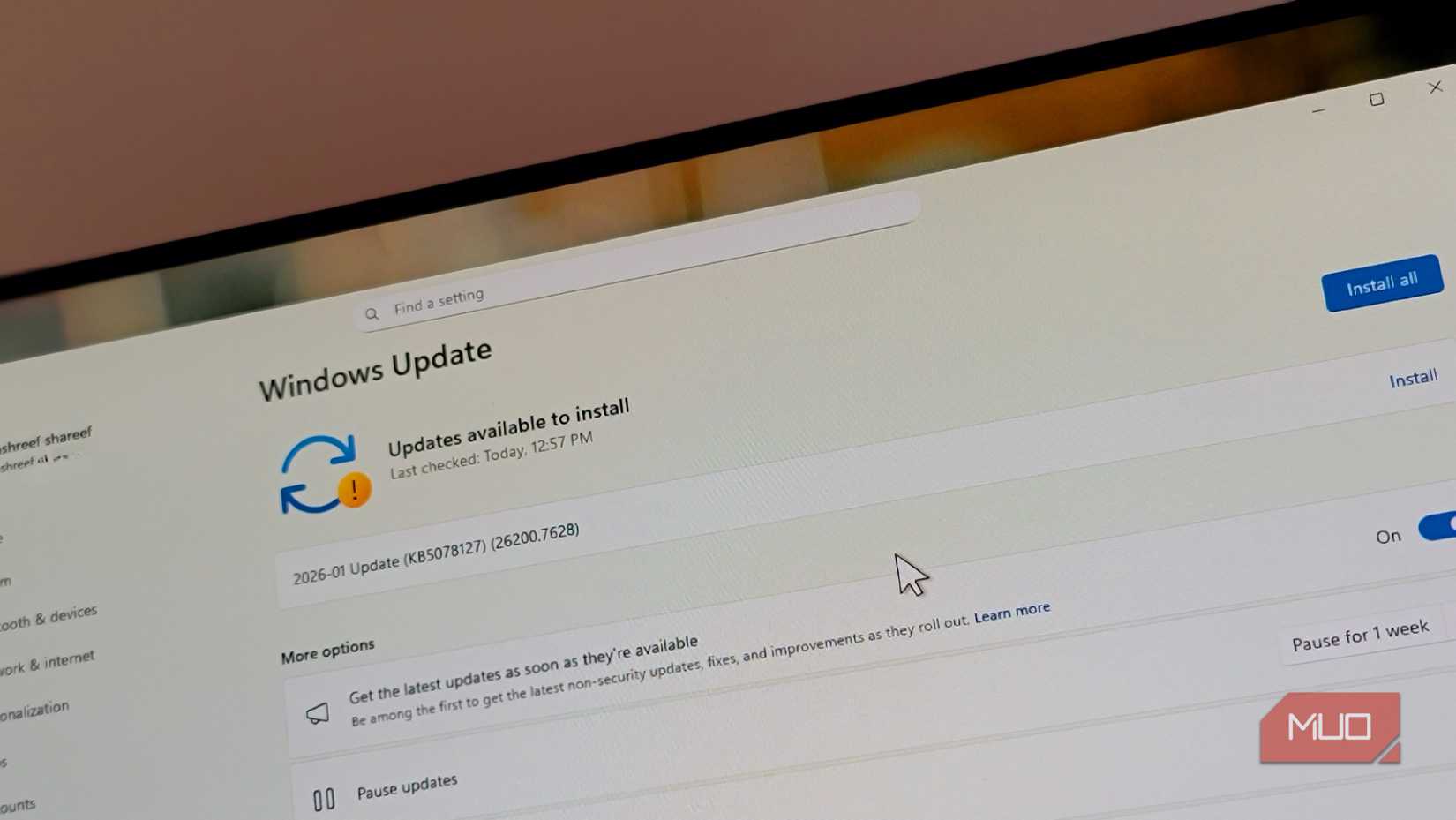
There's no point putting in all this effort if a future Windows update undoes your changes or introduces new bloat. I've configured Windows Update to notify me instead of installing automatically. Go to Settings > Windows Update > Advanced options and set things up so you're in control of when updates happen.
For major feature updates, I wait a few weeks before installing them. Microsoft's track record with bug-free releases isn't great, and community forums are usually quick to flag problems. That said, not all updates are bad. The latest Windows 11 update actually brings some useful quality-of-life improvements worth installing.
If you want even more control over when your PC updates, there's a reliable method to actually stop Windows updates on your PC when you need to. I use it when I know a specific update is causing issues and want to skip it until Microsoft releases a fix.
Once your system is clean and stable, create a full system image. If a future update breaks something or reintroduces bloat, you can restore your setup in minutes instead of going through this whole process again.
A cleaner Windows 11 without the risk
None of this requires running a script you found on the internet or trusting a third-party optimization tool with deep access to your system. Every change here is either built into Windows or uses a single, well-known utility that lets you review each setting before applying it. It takes more time than running a debloating script, but you can pick and choose the actions.
That said, this isn't a one-time solution. Microsoft regularly adds new features and telemetry options through updates, so you'll want to revisit your privacy settings after major updates. But starting with a clean, manually configured installation puts you in a much better position than chasing problems after a script breaks something you didn't know you needed.





 English (US) ·
